How I self-host this blog at home with a dynamic IPv4 address, IPv6 prefix, and a dash of Wireguard
Networking has long been my Achilles heel. I know the very basics, but the more complex areas of networking have been a bit puzzling to me. By the time I figured out how IPv4 works, I found IPv6 and that my ISP supports it.
Back to square one.
That didn’t stop me from learning some bits, and after 8+ years of self-hosting as a hobby, I’ve settled on a setup that works for me and overcomes common residential internet connection nuances, such as dynamic IPv4 addresses and changing IPv6 prefixes. I’m sharing these tips and tricks with the goal of helping out other hobbyists out there that happen to share a similar stack.
Background
My ISP is polite enough to provide a public IPv4 address, and allowing incoming traffic is a toggle in their online self-service. Not perfect, but at least you can do it. However, they charge about 6 EUR a month for the static IP address service, which I am not willing to pay out of principle.
They also support IPv6, which is great, and they provide you a whole /56 slice of it to play with using IPv6 prefix
delegation. Unfortunately they have configured the lease time for the prefix to be incredibly short: 26 minutes!
A router reboot or short power outage usually results in the IPv4 address and IPv6 prefix changing, which is really annoying as my services become unavailable for a short time.
Dynamic DNS
A common way to overcome the dynamic IP address limitation is to sign up with a provider to set up a DNS record that changes whenever your home IP address changes. My domain registrar does not have this as a feature, and I’m not interested in using a different provider, so I went in a different direction and built a home-grown script that does the same thing.
Initially, this script relied on a public service that tells you what your IP address is, and based on that I could check if things have changed and I need to update my DNS record. This approach has one glaring catastrophic failure mode though: that provider could lie to you one day and now you’ve pointed your DNS records at the attackers’ servers. :)
I ignored that failure mode for a while, but once I learned about the effectiveness of LLM-based tooling, I decided to give it a go and to build a better solution that takes into account my setup and requirements, while at the same time saving me from the frustration of troubleshooting and debugging this in a late evening. I’m still very limited on available free time, so optimizing for that is a priority for me.
My main networking gear runs OpenWRT, and it supports running shell scripts periodically in a crontab. The router has two WAN interfaces, one for IPv4 and one for IPv6. It already knows what IP address and prefix have been assigned to it, so I don’t have to rely on an external service provider for finding this out.
Handling IPv4 addresses is simple: check the IPv4 address of the WAN interface. Query your existing DNS records, diff it, and if it has changed, push an update in a separate API call. Super simple!
With IPv6, the approach is slightly different. Instead of the WAN interface, I have to get the IPv6 address of the target machine, and make sure that it’s routable over the public internet. When you’ve checked your network settings in an IPv6 network, you may have noticed a lot of different IP addresses there, with lots of letters thrown into the mix.
Here’s an example from the machine that is serving you this blog (likely out of date though!):
    inet6 fdb3:6dad:6dce::f41/128 scope global dynamic noprefixroute
    inet6 fdb3:6dad:6dce:0:2e0:4cff:fe0c:9ddb/64 scope global noprefixroute
    inet6 2001:7d0:856c:4000::f41/128 scope global dynamic noprefixroute
    inet6 2001:7d0:856c:4000:2e0:4cff:fe0c:9ddb/64 scope global dynamic noprefixroute
    inet6 fe80::2e0:4cff:fe0c:9ddb/64 scope link noprefixroute
The two relevant ones are the ones that start with 2001:, others are link-local or accessible over the local network
only. The shorter one consists of the IPv6 prefix part, and then the unique bit at the end is a predictable suffix that
the host gets. The other one also works, but is as far as I understand randomly generated and more difficult to predict
when we get around to next sections.
I know that there is probably a better way to do this, but I wanted to keep things simple enough so that I can troubleshoot them if needed. It may be possible to trigger this updater script on events that WAN and WAN6 interfaces send, but I have not validated this theory.
There are many different ways to find the IPv6 address of a particular host, so the script I have just tries multiple approaches to find the one that we’re looking for.
Here’s the script in case you’re interested in setting up something similar. It reads credentials from
an .env file and is built around the Zone API. On OpenWRT, the only dependency that you need to
install is curl, which to my surprise was not part of the default packages list, probably to save on space.
One lesson I learned from a previous iteration of the script: if you trigger DNS record updates every minute, then Zone
will actually reach out to you via e-mail telling you to cut that shit out, politely. It was just one missing if
statement, and yet it caused some frustration to engineers far away. Sorry!
Predictable IP addresses
It’s a good idea to set up static IP addresses for your hosts, both for IPv4 addresses and IPv6 prefix delegation via DUID-s.
The OpenWRT GUI LuCI makes it quite simple, just set the addresses as static on the landing page for the hosts that you are interested in forwarding traffic to, and you’re done!
My recommendation here is to also set a predictable IPv6 suffix, otherwise all your IPv6 traffic rules may break once again due to this nuance.
I like to make that host number the same for both IPv4 and IPv6, quick example:
192.168.1.22001:7d0:854f:8e00::2
Here’s a configuration snippet example from /etc/config/dhcp, look for the hostid option:
config host
        option name 'mycoolserver'
        option ip '192.168.1.69'
        list mac '12:34:56:78:90:AB'
        option duid 'yourduidgoeshere'
        option hostid '69'
Apply with service dnsmasq restart.
In LuCI, as of OpenWRT 25.12, look for “IPv6 token”.

Note that due to a bug, it doesn’t seem to be possible to set a numeric IPv6 token via GUI, which is why you will need to add it manually in CLI using the above approach.
Port forwards, traffic rules, potato, potahtoh
Whenever you want to make a local machine accessible on the internet for IPv4, the solution is simple: set up a port forward to that particular machine, and you’re done! It’s a common enough flow for people who’ve set up game servers and the like, and well understood by more novice users.
With IPv6, port forwards don’t help. You’ll have to check one tab over at “Traffic rules” in OpenWRT GUI.
It’s a common misconception that by using IPv6 you are exposing everything to the world as each device gets its own IPv6
address, but turns out that this is not the case in most common setups. By default, OpenWRT forwards only a few types of
traffic to IPv6 hosts, such as ICMP packets that make ping work between devices over IPv6 across the public internet.
If you are interested in allowing IPv6 clients to access services on your local server that has an IPv6 address, you
will have to explicitly allow it by adding a new traffic rule.
There’s one issue with this approach that a lot of users seem to run into: if the IPv6 prefix changes, then all my traffic rules that are pointing to a particular host are automatically broken!
Luckily there is a clever workaround implemented on OpenWRT that bypasses this issue. Assuming that you followed the
previous step and set yourself up with a predictable IPv6 suffix, when setting up a traffic rule, set the target device
up as ::69/-64, just replace 69 with your actual suffix. The IPv6 prefix can now change, but the ports that you’ve
made accessible on this specific host will remain working.
At this point, you should be all set with a reasonably well working setup where you’ve handled the issues with dynamic IPv4 and IPv6 prefix, and you can access your services over the public internet even when things happen.
Limitations
One issue that this setup has is the fact that DNS change propagation takes time. Usually clients will pick up the new records within 5 minutes, but in my professional career I’ve seen some clients take up to 24 hours or longer to finally start sending traffic to the new DNS record. Whenever your IP address changes, there will be a mini-outage. Not catastrophic if you’re just hosting hobby projects and personal services at home, but I wouldn’t host anything mission-critical in such a setup.
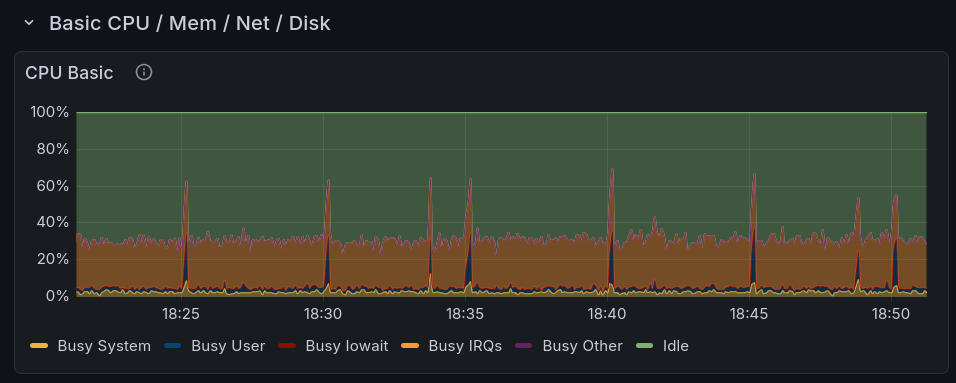
When your OpenWRT device is as underpowered as mine, then you may notice that the TLS encryption overhead when curl
-ing around can be significant. I have set my dynamic DNS script to run every 5 minutes, and it shows up on the CPU
usage graphs on my router.
Wireguard all the things!
I know that Tailscale is a popular method of connecting up your devices and making your personal services privately accessible over that, which significantly reduces your attack surface. Being behind a few updates or not being vigilant enough is less of an issue compared to exposing your services over the public internet.
You don’t necessarily need Tailscale for that though! If you just need a way to access your services over a private and secure network, then setting up a dedicated mini PC or single-board computer is a very good starting point. Let it be the server, allow traffic to move between the clients over the Wireguard interface, and you’re all set!
Alternatively, if you have an OpenWRT router, then you can do it right there, but I found the GUI management setup to be a bit clunky compared to deploying the plain configuration files to clients. When I did do that test, I discovered quickly that my router and its single ARM CPU core with no cryptography extensions is too slow for managing my Wireguard network, with speeds topping out at 20 Mbit/s. 20. The LattePanda IOTA can easily saturate its gigabit link, as does the ThinkPad T430, and even devices like the Orange Pi Zero can handle a theoretical maximum of about 240 Mbit/s over Wireguard measured using wg-bench.
My current Wireguard host is the LattePanda V1, the most unstable computer in my fleet. With a USB adapter, it can push almost half a gigabit of traffic over Wireguard.
If you’re like me, and you like hosting your services over Docker or Podman, then instead of listening on ports for all interfaces on your containers (default behaviour when setting up port forwards), I recommend listening only on the Wireguard interface. This makes the service only accessible over Wireguard, meaning that you only need to set up one port forward and traffic rule to connect to the Wireguard network, and then you have access to all of your services. The attack surface is significantly reduced, the whole Wireguard solution is stable and very small, and unless you leak your private key, you are reasonably secure!
Here’s a snippet from a compose file showcasing how to set this up for IPv4 and IPv6:
ports:
  - 10.69.69.12:2283:2283
  - "[fded:abba:acca::12]:2283:2283"
Want to make the service available over Wireguard and over the local network directly? Just add those to the list! Note that if your local address changes and you don’t update it in the compose file, your container will refuse to start up as it cannot listen to the interface any longer, but you can mitigate that with the static IP addresses step.
When you are going with this route, it is unlikely but still possible that by the time the container starts up, the
Wireguard interface is not yet up. To resolve this, you can use systemd to set Wireguard up as a dependency that you
will have to wait for before the container starts up.
I manage my Wireguard connection with wg-quick@interfacename service. You can set up a systemd override for Docker,
or if you manage your Docker/Podman services via systemd, then you can set it up per-service using this pattern:
# /etc/systemd/system/myimmichserver.service.d/override.conf
[Unit]
Requires=wg-quick@interfacename.service
After=wg-quick@interfacename.service
By the way, systemd overrides are also really useful for ensuring that your storage that your containers rely on is
properly mounted. If my service requires the path /immich to be available and mounted, add something like this:
BindsTo=immich.mount
After=immich.mount
If you unmount the mount point, it will also properly bring down the service. The service won’t start if the mount point is missing. I’ve had the issue with containers seeing blank mount points more times than I’d like to admit, and this has eliminated this issue for me.
systemd has received a lot of hate online, and I don’t think it’s fair. The ease with which you can set up
dependencies on your system, set up resource limits, make services more restricted to improve the security posture is
great and allows me to and avoid all sorts of failure modes. Production services that I’m responsible for make use of
these systemd features, with great results.
For services that need to be public, such as Nextcloud and its public shareable links, this approach won’t work, obviously, but for things that only you and your family members use, this is a viable approach.
Conclusion
This setup works well enough for me to confidently host my blog and self-hosted services off of it. I’ve hit a lot of paper cuts and frustrations along the way, but after following this guide, you don’t have to do the same.
Yes, VLAN-s are intentionally missing from this guide. I’ll get to them eventually, maybe by Q4 2037 given my lack of free time.
And no, IPv6 isn’t complicated, it’s just different from what everyone is used to. If we started out with IPv6 right from the get-go, we wouldn’t be having dumb arguments online.
Subscribe to new posts via the RSS feed.
Not sure what RSS is, or how to get started? Check this guide!
You can reach me via e-mail or LinkedIn.
If you liked this post, consider sharing it!